Google Takeout JSON Files: Find the Photo Before Restoring It
A Google Photos export contains images and metadata. Learn which file to open, why renaming JSON does not work, and test with a safe example archive.
ArtImageHub Editorial Team
Prices and project totals in this article are reference estimates. Your current ArtImageHub offer is $9.90 for a one-time payment; review the access terms at checkout before paying. Upload follows payment.
Open the image file, not its accompanying JSON metadata, when preparing a Google Photos export for restoration. A folder full of similarly named files can make a complete download look broken. Renaming a text record to .jpg will not turn it into a photograph.
This guide addresses a real Google Photos export question: the user saw many JSON files and wanted to know whether the pictures exported correctly. We have not accessed that person's account. Our demonstration uses an original, synthetic file set, not an actual Google Takeout export or customer archive.
First, keep the downloaded archive intact
Preserve the ZIP files and work in a separate extracted folder. If the export has several parts, account for every downloaded part before deciding that pictures are missing. Avoid bulk renaming or combining folders in a way that silently overwrites same-named files.
Google's download-your-data instructions explain the export process and distinguish embedded media metadata from additional information supplied in secondary JSON files. The exact contents and names in your export can vary; a matching basename is a clue, not a complete rule for pairing every file.
Identify what is actually in the file
Enable file extensions in your file manager, then open a candidate image in a local image viewer and inspect its pixel dimensions. A familiar icon or a large file size alone is not proof that the file is a usable original.
- An image such as a JPEG or PNG should decode into pixels. Check the width and height rather than relying on its thumbnail.
- An accompanying metadata JSON opens as text with fields and values. It may describe a photo, but it is not the picture selected for an image-upload field.
- An album-level record can describe a collection rather than one photograph. Do not assume every JSON must have a same-named image in that exact folder.
- A renamed or corrupt file may have an image extension and still fail to open. Preserve it while checking the rest of the export; do not discard the only copy based on the extension.
Do not upload an entire archive or its metadata just to find out what it contains. These records can contain private descriptions, dates or locations. Inspect copies locally first.
Try our five-file example
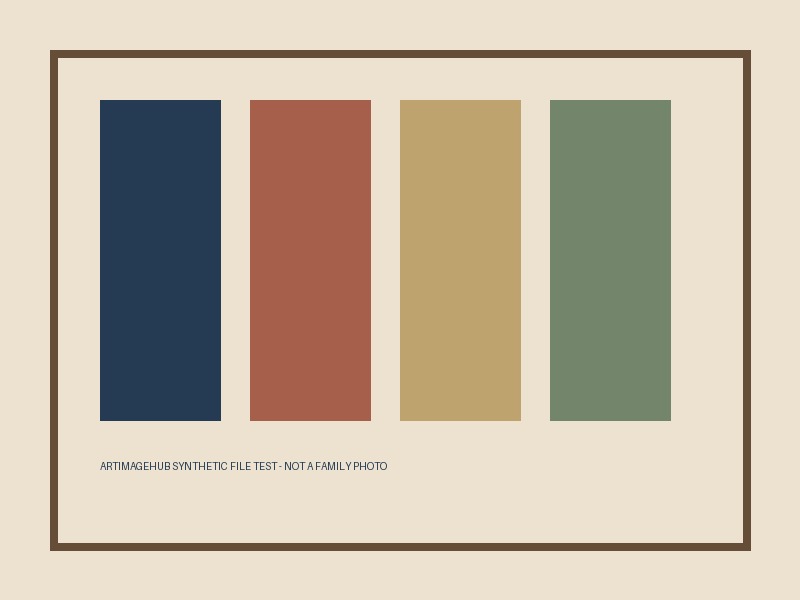
Download the synthetic file-identification example. It contains a simple graphic made for this guide, its smaller copy, two text records and one intentionally mislabeled file. No family photographs or Google account data are included.
- Open
example.jpg. It is a real 800 × 600 JPEG. - Open
example-thumbnail.jpg. It is 200 × 150. Both files show the graphic, but they do not contain the same number of pixels. - Read
example.jpg.jsonin a text editor. Its invented fields describe the fixture; they are not an official export schema and contain no image payload. - Read
album-metadata.json. It is a separate invented collection record. - Try opening
renamed-json.jpgas an image. This is a copy of the JSON with a misleading extension. In our Pillow 12.1.1 check, image decoding fails; changing the name did not create pixels.
The archive includes hashes for the files. Hash equality checks file bytes, not photographic quality or ownership. A different hash does not, by itself, mean that one version is better.
If you can find only JSON
Check the other extracted parts and folders, the account used for the export, and the selected product and album scope. Search for media extensions, then open actual candidates instead of assuming that a text attachment replaced an image. Different exports may include other media types too.
If a JPEG itself fails to open, that is a different problem from selecting JSON. Keep the original download, try extracting a fresh copy, and use Google's current export troubleshooting guidance. This guide does not certify that an archive is complete or offer recovery of permanently deleted photos. Google explicitly separates exporting existing data from finding lost photos.
Choose the working photo, then assess restoration
Compare the readable image candidates at equal display size. A larger version may provide more usable detail, but pixel dimensions alone do not establish that it is the camera original or that it has never been compressed. Keep accompanying metadata and original media separately from any edited derivative. Do not mistake a changed filesystem date for the date the scene was photographed.
If the chosen file is sideways, use the EXIF orientation guide before calling the pixels damaged. If your source is inside a PDF instead, follow image extraction without screenshots; that is a different file problem.
Once you have a readable photo, ArtImageHub old photo restoration is an optional paid next step: $9.90 one-time, no subscription, payment before upload and processing. A metadata record alone cannot be repaired into its missing photograph. This free example archive does not provide free photo processing or certify a restoration result.
Frequently asked questions
Are Google Takeout JSON files my photos?
The accompanying metadata JSON files are text records, not the image files you open for photo editing. Keep both the media and its metadata when preserving an archive.
Can I rename a JSON file to JPG?
Renaming a metadata file does not create image pixels. In our synthetic example, the renamed file still contains JSON and fails image decoding.
Does Takeout recover deleted photos or restore lost image quality?
No. An export is not a recovery service for permanently deleted content. It also cannot reconstruct image detail already lost from the version stored in the account.
Should I delete all JSON files after extracting the archive?
Keep an untouched archive before reorganizing anything. Extra descriptions and other metadata can be useful later, and a folder containing only JSON does not establish that every archive part lacks images.
Share this article
Ready to Restore Your Old Photos?
Try ArtImageHub's AI-powered photo restoration. Bring faded, damaged family photos back to life in seconds.