Photo Uploads Sideways? Fix EXIF Rotation Before Restoration
Fix a photo that looks upright on your phone but turns sideways after upload. Compare EXIF tags, stored pixels, and an upright copy with our test files.
ArtImageHub Editorial Team

If a photo uploads sideways even though it looks upright on your phone, inspect the saved file before repeatedly rotating and uploading it. An image can store its pixels in one orientation and carry a separate instruction telling a viewer how to display them. Applications that handle that instruction differently can show different results.
A useful fix is an upright working copy whose pixels are already arranged correctly, with no conflicting orientation instruction. That is different from changing only the instruction. It also does not require AI restoration.
This guide uses original synthetic test charts and downloadable files. It does not diagnose a particular website or promise that every image format uses the same metadata rules.
The pixels and the display instruction are different
EXIF Orientation can describe rotations and reflections. A portrait photograph may therefore contain a landscape-shaped pixel array and still be displayed upright by a viewer that honors its tag.
MDN documents the browser's image-orientation behavior: the default from-image value uses orientation information from the image. That explains why a correctly displayed browser preview does not, by itself, prove the underlying pixels were rewritten.
The important distinction is between three operations:
On a small screen, swipe the table sideways to read every column.
| Operation | What changes | What can go wrong |
|---|---|---|
| Edit the orientation tag | A display instruction | Another application may interpret it differently or ignore it |
| Strip the tag without transforming pixels | The instruction is removed | Pixels that relied on the instruction can remain sideways |
| Apply the correct transform, then remove the instruction | The pixels are rearranged | A wrong source tag still leads to the wrong result |
Do not set every tag to “normal” and assume the image has been repaired. That changes the instruction, not the arrangement of the picture.
Our example: tag 6 versus an upright PNG
We created a portrait chart with an asymmetric arrow, numbered corners, and colored blocks. For the tag-6 input, the stored JPEG pixels measure 900 × 600, while the tag instructs an orientation-aware viewer to display them with a clockwise quarter-turn.
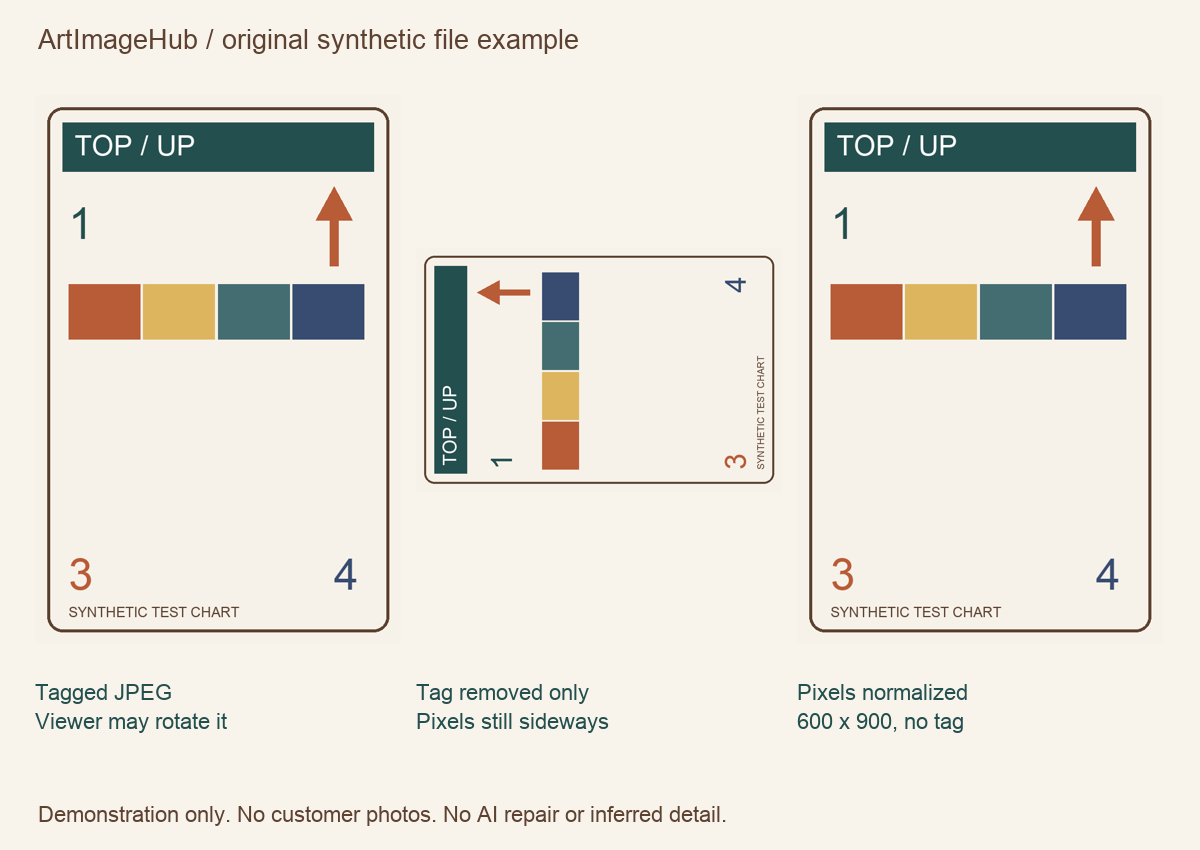
We then made two copies:
- Tag removed only: a 900 × 600 PNG retaining the sideways pixel arrangement.
- Pixels normalized: a 600 × 900 PNG with the orientation applied and no remaining EXIF Orientation tag.
The comparison illustration displays the tagged JPEG with its orientation honored. A different application may already show that input correctly; that is consistent with the example, not evidence that all uploaders have a rotation bug.
We also supplied eight JPEG cases covering orientation values 1–8, including reflections. The eight intentionally correct tags produced upright 600 × 900 PNGs in our local normalization run. This is a test of these files, not a benchmark of phones, browsers, HEIC files, or ArtImageHub processing.
Download the original EXIF orientation example and normalization script.
The ZIP includes the eight synthetic JPEGs, their normalized PNG copies, a tag-removed-only comparison, results, and normalize.py. No personal photographs are included.
Make an upright copy in your image editor
Start with a duplicate of your source so the original remains available for comparison.
- Open the duplicate in an image editor and inspect a reliable cue: a person's posture, readable text, or a known edge of the print.
- If needed, rotate or flip it until those cues are correct. A portrait-shaped file can still contain an upside-down picture.
- Export a new image copy. For a preparation test, PNG avoids another JPEG compression step, although its file size may be larger.
- Close and reopen the exported file. Check it in another viewer and in the intended upload preview.
- Compare faces, text, crop, and left/right placement with the original before continuing.
Apple documents rotation and flipping in Preview and exporting a copy to another file type. Those are documentation-based editor steps. The reproducible normalization test below is the method we ran on our synthetic files.
If the exported file is correct in independent viewers but the uploaded result still differs, keep both files and record which application changes the display. That is more useful than counter-rotating the original repeatedly without checking the new saved file.
Repeat the normalization locally with Pillow
For a correctly tagged input, Pillow provides an operation that applies its orientation and removes the orientation data. This behavior is described in the official exif_transpose documentation.
With Pillow installed in a local Python environment, a single-file example is:
from PIL import Image, ImageOps

with Image.open("orientation-6.jpg") as source:
    upright = ImageOps.exif_transpose(source)
    upright.save("upright-copy.png")
The downloadable normalize.py applies that operation to the supplied eight files and writes into a separate normalized-copies directory. Our results were recorded with Pillow 13.0.0; the bundle includes the source hashes and normalized pixel hashes.
This operation follows metadata. It cannot decide whether an untagged image is a sideways building or an intentionally rotated composition. If the tag is wrong or absent, use the visual checks above and rotate the working copy deliberately.
What this fixes before photo restoration
An upright file makes it easier to inspect the image you are submitting and to compare a later result with its source. Orientation correction does not repair scratches, sharpen a face, or recover missing words.
Keep your original scan and its useful family-history information separately; exporting a working copy is not an archival metadata policy. Our metadata preservation guide covers that broader task.
If you separately choose paid photo restoration, prepare a JPG, PNG, or WEBP image up to 20 MB, then review the current quoted price and checkout terms. Payment comes before upload and processing. The orientation examples are free local test files, not free processing access or a claim that restoration will recover unavailable detail.
Frequently asked questions
Why is my photo upright on my phone but sideways after upload?
The stored pixels and the EXIF display instruction may be handled differently by the two applications. This is one possible cause, not a diagnosis of every upload problem. Compare the exported file and the actual uploaded preview before choosing a fix.
Will deleting EXIF metadata fix a sideways photo?
Deleting the orientation instruction alone does not rearrange the pixels. If that instruction was needed to display the photo upright, removing it can leave the image sideways. Apply the correct orientation to the pixels before removing the instruction.
Can normalization fix an image with the wrong orientation tag?
Normalization follows the tag; it does not recognize which way a person or scene should face. If the tag is missing or wrong, inspect the image and rotate or flip a working copy manually.
Do I need AI restoration just to rotate a photo?
No. Rotation and orientation normalization are file-preparation tasks. Use an image editor or the supplied local example. Choose paid restoration separately if you need supported repair work after preparing the image.
Share this article
Ready to Restore Your Old Photos?
Try ArtImageHub's AI-powered photo restoration. Bring faded, damaged family photos back to life in seconds.