Extract Photos from a PDF Without Taking Screenshots
Extract an embedded photo or render a scanned PDF page at a chosen resolution. Our downloadable example shows why screenshots can leave you with fewer pixels.
ArtImageHub Editorial Team

To extract photos from a PDF, first find out whether the document contains separate image objects or one scan of an entire page. Use image extraction for the former; extract or render the page and crop it for the latter. Taking a screenshot is convenient, but it makes your available pixels depend on the displayed view and screen capture rather than simply retrieving the stored image.
This guide includes an original downloadable example: a JPEG embedded in a PDF, the extracted file, two page-rendering crops, and a short script. The picture is a synthetic marker chart made for this article. It is not a customer photograph or an AI restoration result.
Choose between extracting an image and exporting a page
A PDF page can combine text, photographs, vector drawings, and other objects. The visible rectangle around a photograph does not tell you which of those structures you have.
On a small screen, swipe the table sideways to read every column.
| What you have | Useful first action | What to check afterward |
|---|---|---|
| A PDF with a separate photo object | Extract that image | Pixel dimensions, orientation, and whether the complete photo is present |
| A scan containing several photos on one sheet | Extract the page image, or render the page | Whether you have the whole sheet before making individual crops |
| A flattened page with captions over the picture | Render the visible page if those captions matter | Whether the export includes the required overlays |
| A tiny image already embedded in the PDF | Keep the best existing copy; look for the original scan | Whether another source contains more detail |
An image extracted from beneath a separate caption may omit the caption. A page rendering includes the page's visible composition. Choose according to what you need to preserve, rather than assuming one command serves both purposes.
A measured example: 1200 pixels versus 288 pixels
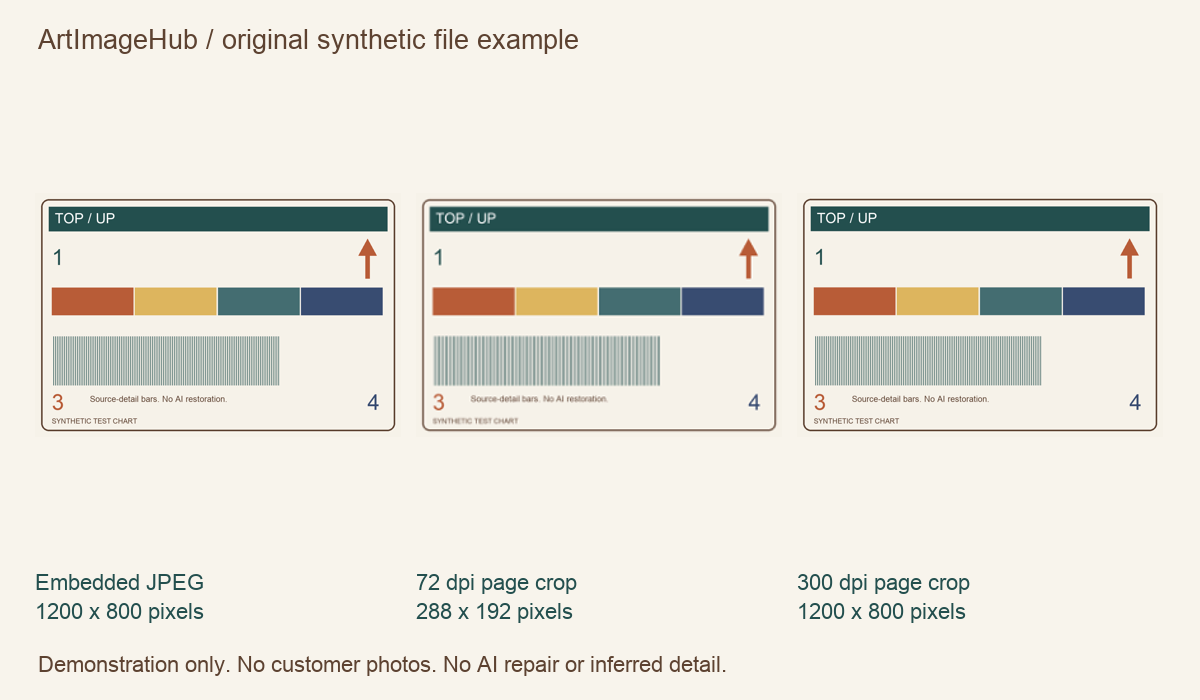
We placed a 1200 × 800 pixel JPEG on a PDF page at 4 × 2.667 inches. There is one embedded image, with a separate caption outside it. We then extracted the image with PyMuPDF and rendered the same image region at two resolutions.
| File in our example | Measured dimensions | What the check established |
|---|---|---|
| JPEG before embedding | 1200 × 800 | The reference input |
| JPEG extracted with the supplied script | 1200 × 800 | Its SHA-256 matched the reference JPEG exactly |
| Image region rendered at 72 dpi | 288 × 192 | The four-inch width became 288 pixels |
| Image region rendered at 300 dpi | 1200 × 800 | The dimensions matched the source, but the file was a newly rendered PNG |
These figures describe this fixture, not every PDF. The 72 dpi file is a page-rendering crop, not a browser screenshot. It illustrates how a small page export can leave fewer pixels to work with. Screenshots have their own dimensions, determined by the capture setup.
The 300 dpi rendering does not create new photographic detail. Nor does matching dimensions make it the same file as the embedded JPEG. For this example, direct extraction is the route that retrieves the original JPEG bytes.
Download the original PDF extraction example and reproduction script.
The ZIP contains the synthetic source JPEG, PDF, extracted JPEG, rendered PNGs, results with file hashes and software versions, and reproduce.py. To repeat the extraction in a local Python environment with PyMuPDF installed, unzip the bundle and run python reproduce.py. Compare the printed hash with results.json. The PyMuPDF image recipes describe image extraction and page rendering; the downloadable files document our own test.
Extract separate images with Acrobat
If your Acrobat version includes image export, Adobe documents a distinction that matters here:
- Open the document and choose Convert, then an image output format.
- Enable Export all Images when you want the separate raster images.
- Review the image settings, including any filter that excludes small images.
- Export to a new folder and inspect the resulting files.
Without that option, Acrobat exports the pages to the selected image format instead. Adobe's official image-export instructions also distinguish raster images from vector objects. These are documentation-based Acrobat steps; our measured fixture above uses the downloadable Python script, not an Acrobat benchmark.
On a Mac, Preview can export a PDF to another file type. Treat a page-to-image export as a page rendering and check the resulting pixel dimensions. Do not assume it retrieved the embedded photo unchanged.
If several photos belong to one scanned page
An album sheet scanned as one image still contains only that combined scan. Extracting it does not uncover independent camera originals for each photograph.
Keep the complete page first, including useful handwritten notes. Make a working copy, then crop one photograph at a time. Leave enough edge context to avoid cutting off faces or clothing. Name each crop so you can trace it back to the source PDF and page number.
If an extracted file contains missing overlays, tiles, masks, or an incomplete picture, compare it with the visible PDF page. A page rendering may be the more useful working copy. Higher export resolution does not solve a source scan that is already too small; our photo resolution guide explains the difference between pixel dimensions and print-resolution settings.
Prepare the extracted photo for restoration
Open the image outside the PDF viewer. Confirm the crop, correct orientation, readable details, and a supported file format. Keep the original PDF and the extraction as separate reference files.
ArtImageHub's photo restoration uploader accepts JPG, PNG, and WEBP up to 20 MB. A PDF must be converted or extracted first. Review the current quoted price and checkout terms before choosing paid processing; payment comes before upload. The sample ZIP is free to download and does not include processing access.
File preparation preserves the information you have. It does not establish that AI can reconstruct missing words, identify a face, or recover what was lost during an earlier scan. Use the restoration review sheet to compare any later candidate against its source before sharing it.
Frequently asked questions
Does extracting a photo from a PDF always preserve the original quality?
No. It depends on how the PDF stores the image and how the extraction tool handles it. Our supplied JPEG example can be extracted byte-for-byte with the tested method, but that is not a guarantee for other PDFs or export tools.
What if all the photos are part of one scanned page?
Extract or render the whole scanned page, keep that copy, then crop each photo into a separate file. A PDF extractor cannot recover separate original photo files when the PDF contains only one combined page image.
Will exporting a PDF at 300 dpi restore missing detail?
No. The export setting controls the rasterized page dimensions. It can avoid an unnecessarily small export, but it cannot recover detail that the scan or PDF no longer contains.
Can I upload a PDF directly to ArtImageHub photo restoration?
The restoration uploader accepts JPG, PNG, and WEBP images up to 20 MB, not PDFs. Prepare a supported image first. If you choose paid restoration, review the current checkout terms; payment comes before uploading and processing.
Share this article
Ready to Restore Your Old Photos?
Try ArtImageHub's AI-powered photo restoration. Bring faded, damaged family photos back to life in seconds.