
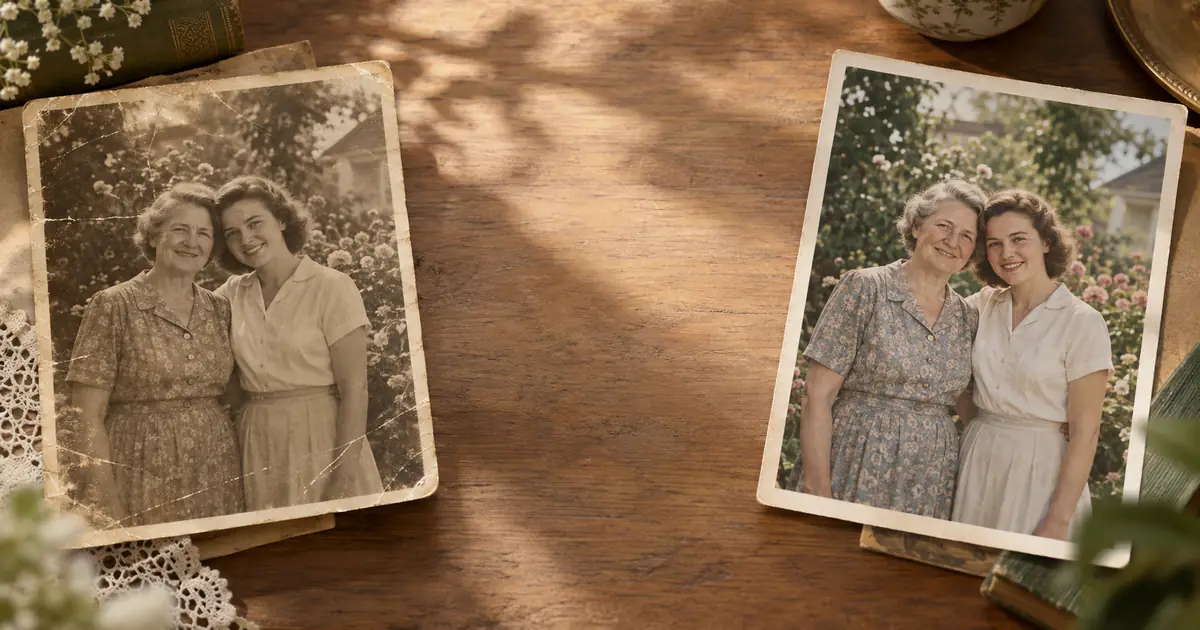
How to Restore Old Photos on Windows PC (2026 Guide)
How to restore old, faded, or damaged family photos on a Windows PC — built-in tools, free software, and the fastest path to quality AI restoration.
ArtImageHub Editorial Team
Prices and project totals in this article are reference estimates. Your current ArtImageHub offer is loading for a one-time payment; review the access terms at checkout before paying. Upload follows payment.
If you have old family photos on your Windows PC — scanned, photographed, or digitized — here's a complete guide to restoring them using built-in tools, free software, and AI restoration.
Windows Built-In Tools
Microsoft Photos (Windows 10/11):
- Auto-enhance: one-click brightness/contrast improvement
- Manual adjustments: light, color, clarity sliders
- Crop, rotate, straighten
- Red-eye removal
- Spot fix (Windows 11): basic blemish removal
For old photos: Microsoft Photos' auto-enhance can improve slightly faded photos from the 1980s–1990s. For heavily degraded historical photographs, it's insufficient — no face reconstruction, no systematic fading correction, no scratch removal.
Paint (Windows 10/11): Basic image editing. Not useful for photo restoration.
Windows 11 AI features: Windows 11's Photos app has improved AI features including background blur and basic enhancement, but nothing specifically designed for old photo restoration.
Free Desktop Software for Windows
GIMP (Free, open-source):
- Full Photoshop-alternative with healing brush, clone stamp, curves, layers
- Steep learning curve but powerful once mastered
- No AI restoration (manual work only)
- Best free option for maximum manual control
Upscayl (Free, open-source):
- AI image upscaling using Real-ESRGAN
- Good for enlarging clear photos
- Doesn't address fading, face degradation, or scratches
Paint.NET (Free):
- Lighter than GIMP, more accessible
- Layers, effects, basic clone stamp
- No AI features
- Good for basic adjustments and light touch-ups
The Fastest Path on Windows
- Scan the old photo using your scanner or photograph it with your phone (Google PhotoScan app → transfer to PC)
- Open any browser (Chrome, Edge, Firefox)
- Navigate to ArtImageHub → upload the scanned file
- Wait 30–90 seconds → CodeFormer + GFPGAN + Real-ESRGAN process the image
- Download the HD restored file to your PC
- Print or share via any service
No software installation required. Browser-based AI restoration works on any Windows PC — no GPU needed, all processing happens server-side.
Windows Scanning Options
Built-in Windows Scan app: Pairs with connected flatbed scanners. Set to 600 DPI, color mode, TIFF or high-quality JPEG output.
Scanner manufacturer software: Epson Scan, Canon IJ Scan, HP Smart — usually offer more DPI control than the generic Windows app.
If no scanner: Use Google PhotoScan on your phone → transfer files to PC via USB, email, or cloud storage.
Comparison of Windows Options
| Method | Quality | Cost | Ease | Time/Photo |
|---|---|---|---|---|
| Microsoft Photos Enhance | Basic | Free | Easy | Seconds |
| GIMP (manual) | High (with skill) | Free | Hard | 30–60 min |
| Upscayl (upscaling only) | Good upscaling | Free | Easy | Minutes |
| ArtImageHub (browser) | Best (CodeFormer) | $9.90 | Easy | 90 sec |
Restore your old family photos — works on any Windows PC browser → $9.90 →
Results in 30–90 seconds · HD download · 30-day guarantee
Related
- How to Restore Old Photos on iPhone — iOS guide
- How to Restore Old Photos on Android — Android guide
- ArtImageHub vs GIMP — GIMP comparison
- ArtImageHub vs Upscayl — Upscayl comparison
Share this article
Ready to Restore Your Old Photos?
Try ArtImageHub's AI-powered photo restoration. Bring faded, damaged family photos back to life in seconds.