
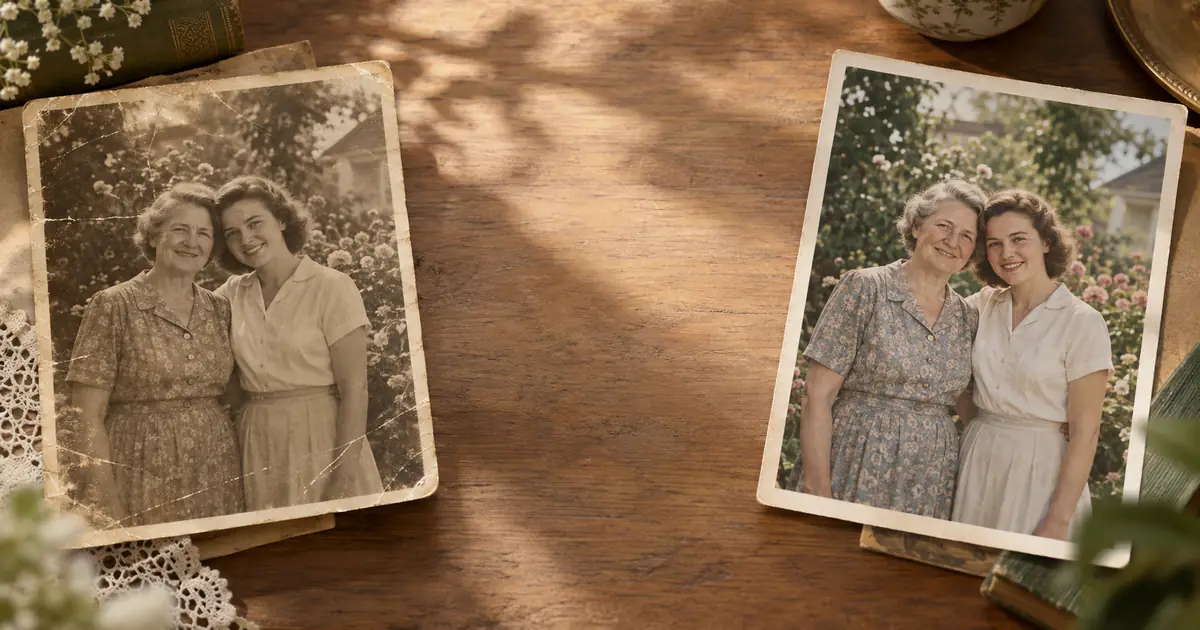
10 Photo Restoration Tips for Better Results
How to get the best results from AI photo restoration — scanning tips, what works best, what to avoid, and how to prepare old photos for AI processing.
ArtImageHub Editorial Team
Prices and project totals in this article are reference estimates. Your current ArtImageHub offer is $9.90 for a one-time payment; review the access terms at checkout before paying. Upload follows payment.
Editorial trust notice: This guide is published by ArtImageHub, an AI photo restoration service charging $9.90 one-time. Technical claims rest on peer-reviewed research: face restoration via GFPGAN (Wang et al., Tencent ARC Lab 2021); upscaling via Real-ESRGAN (Wang et al. 2021).
AI photo restoration has transformed what's possible for old family photographs, but results vary based on inputs and expectations. These tips will help you get the best possible outcome.
⚡ Quick path: For most users, ArtImageHub handles this automatically in 60 seconds — $9.90 one-time, no subscription, no watermark on HD download. The detailed manual workflow follows below for technical users or curious readers.
1. Scan at 600 DPI Minimum
The most impactful factor in restoration quality is scan resolution. AI restoration models work with the information present in the input file — and low-resolution scans simply don't contain the information needed to produce high-quality restored output.
600 DPI for standard 4×6 and 5×7 prints.
1200 DPI for wallet-sized prints (smaller than 4×5 inches).
300 DPI (the common default) is not enough for photos you want to print at 8×10 or larger.
Library flatbed scanners are free and typically support 600–1200 DPI. Worth the trip.
2. Eliminate Glare on Reflective Prints
Old glossy prints reflect light in ways that create bright spots that obscure image information. Once captured with glare, that information is gone — the AI can't recover what wasn't in the scan.
Use Google PhotoScan (free iOS/Android) for glossy prints — it takes multiple shots at different angles and stitches them to eliminate glare.
Use indirect lighting — overcast window light or overhead ambient light works better than direct flash.
3. Flatten Curled Prints Before Scanning
Old prints curl with age. A curved print creates areas of shadow on a flatbed scanner, blocking portions of the image.
Flatten overnight by placing the print between two clean sheets of paper and putting a heavy book or flat weight on top. Don't force the print flat on the scanner — this can damage brittle old prints.
4. Portraits Respond Best
AI restoration models like CodeFormer were trained primarily on human faces. Portrait photographs — where the primary subject is a face — see the most dramatic improvement.
Faces → biggest improvement from CodeFormer.
Full scenes without faces (landscapes, buildings, interiors) → fading and scratch correction from GFPGAN, but no face reconstruction.
If you have a choice between a group photo and a portrait, the portrait will typically show more dramatic restoration improvement.
5. Process Each Photo Individually
Don't crop or collage multiple photos into one file before uploading. Each photo should be processed individually — the AI analyzes the entire image for faces and damage patterns, and a composite of multiple photos produces worse results than individual uploads.
6. Understand What Can and Can't Be Recovered
What AI recovers well:
- Face detail lost to photographic paper aging (CodeFormer's strength)
- Fading and yellowing (GFPGAN's strength)
- Moderate surface scratches
What AI struggles with:
- Large tears where significant content is missing
- Major water staining that covers substantial image areas
- Photos that are too dark throughout (badly underexposed originals)
- Very blurry originals (motion blur from the original shoot)
For severely damaged photos with large areas of missing content, AI restoration will significantly improve the surrounding areas but cannot fully reconstruct large missing sections.
7. Don't Pre-Edit Before Uploading
Don't apply filters, resize, or heavily edit the photo before uploading to AI restoration. The AI performs best on the raw scanned data — pre-editing can introduce artifacts or change tonal values in ways that confuse the restoration models.
Upload the scanned file as-is.
8. Save the Original Scan
Keep the original scanned file. The restored version is for sharing and printing — the original scan is your archival record. Some restoration choices (like colorization) are interpretive; you may want the original black-and-white in the future.
File naming suggestion: 1955-wedding-original.jpg and 1955-wedding-restored.jpg
9. Try Multiple Photos of the Same Person
If you have several photos of the same ancestor at different ages or damage levels, restore them all. Sometimes a slightly less damaged photo of the same person produces a better restoration result — and having multiple restored portraits of a significant family member is more valuable than one.
10. Match Print Size to File Resolution
The HD restored file from ArtImageHub is typically sufficient for 8×10 or 11×14 printing. For very large prints (16×20, 20×24, canvas wraps), the upscaling quality matters.
General guidelines:
- 8×10 at 300 DPI requires ~2400×3000 pixels — ArtImageHub's output handles this comfortably
- 11×14 at 300 DPI requires ~3300×4200 pixels — typically within range
- 16×20 and larger: real-ESRGAN upscaling handles this, but results depend on the original scan quality
For very large print projects, scan at 1200 DPI to give the AI more source material to work with.
Restore your old family photos at ArtImageHub — $9.90 one-time →
Results in 30–90 seconds · HD download · 30-day guarantee
Related
- How to Digitize Old Photos — scanning guide
- How to Restore Black and White Photos — B&W specific guide
- Photo Restoration Cost Guide — pricing overview
Quick method comparison: AI vs DIY vs Professional
| Method | Time per photo | Cost | Skill required | Result quality |
|---|---|---|---|---|
| AI (ArtImageHub) | 60 seconds | $9.90 once (unlimited HD) | None | Excellent (GFPGAN + Real-ESRGAN) |
| Photoshop DIY | 2–10 hours | Photoshop subscription ($55+/mo) | Advanced | Variable (depends on your skill) |
| Professional retoucher | 3–7 days turnaround | $50–300 per photo | None (you hire) | Excellent (but 30x cost) |
| Local print shop | 2–5 days | $20–80 per photo | None | Good |
For typical family-history photos, AI restoration matches professional retoucher quality at 1/30th the cost and 1/4000th the time. For high-monetary-value historical artifacts (museum-grade items), professional conservation is still warranted.
For era-specific damage profiles, see Old Photo Restoration by Decade complete index.
For damage-specific recovery protocols, see Old Photo Damage Recovery by Type complete guide.
Try ArtImageHub directly — $9.90 one-time for unlimited HD restoration.
Share this article
Ready to Restore Your Old Photos?
Try ArtImageHub's AI-powered photo restoration. Bring faded, damaged family photos back to life in seconds.